A unique feature of MotionHub is how we use electronic contributor contracts and AI to help you identify your contributors automatically in your footage.

Electronic contracts are far more easily managed than the paper alternative. There are two ways to send Contributor contracts:
From within MotionHub
Using the QR Code
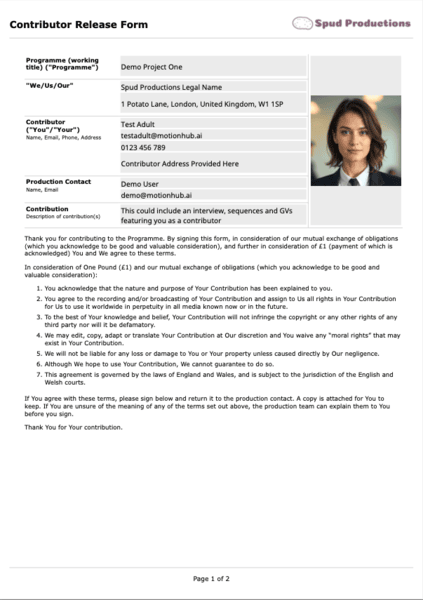
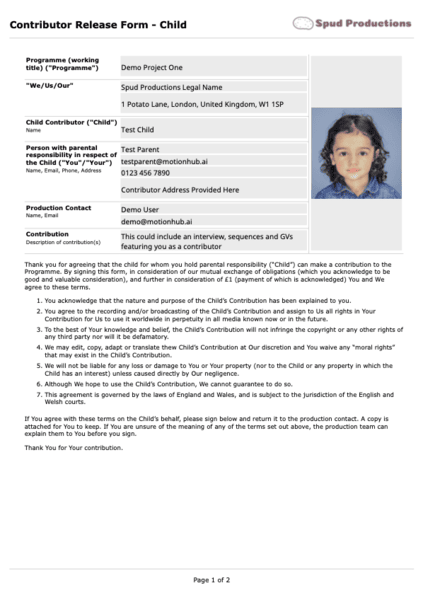
There are two types of contributor contracts; Adult and Child. They are very similar except that a parent/guardian must sign the child contract.
The contributor contracts are based on the templates provided by PACT and they are personalised with information provided in the Account Details and eSignature Settings area within your Account (Address, Legal Name, Privacy Policy URL, Logo, Signature).
Click to download sample
Click to download sample

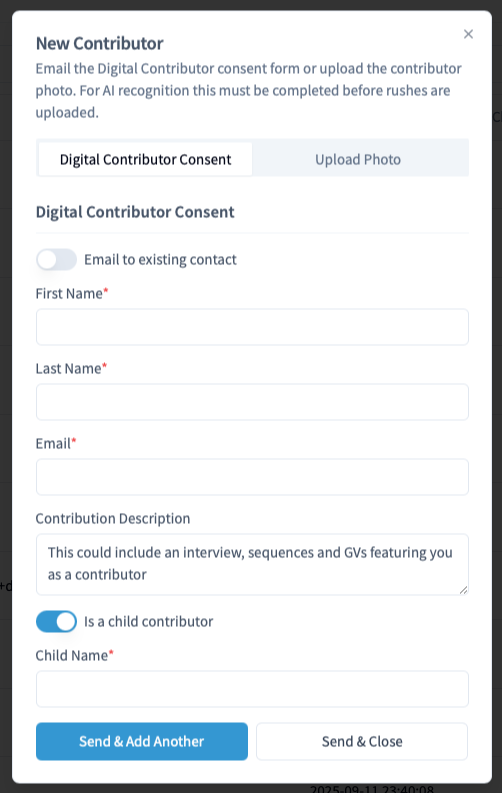
Click the New button - the Digital Contributor Consent option is selected by default. To upload a contributor photo manually, select Upload Photo
If you have the contributor’s email address you can send the contributor contract in advance of filming.
Click the New button - the Digital Contributor Consent option is selected by default. To upload a contributor photo manually, select
If you have the contact’s details already in your system toggle the Use existing contact option to search and select your contact. Otherwise provide the First Name, Last Name and Email for the contributor.
If required, change the Contribution Description.

If the contributor is a child toggle the Use child contributor form and complete the child’s name.
Click Send & Invite Another (keeps the form open to invite another contributor) or Send & Close.
An email will be sent to the Contributor which has a link to complete the contract.
This option allows you to upload a photo and optionally a signed document for contributors. Similarly to the digital contributor consent, provide values for First and Last Name and if it is for a child contributor toggle the switch and add the child’s name.
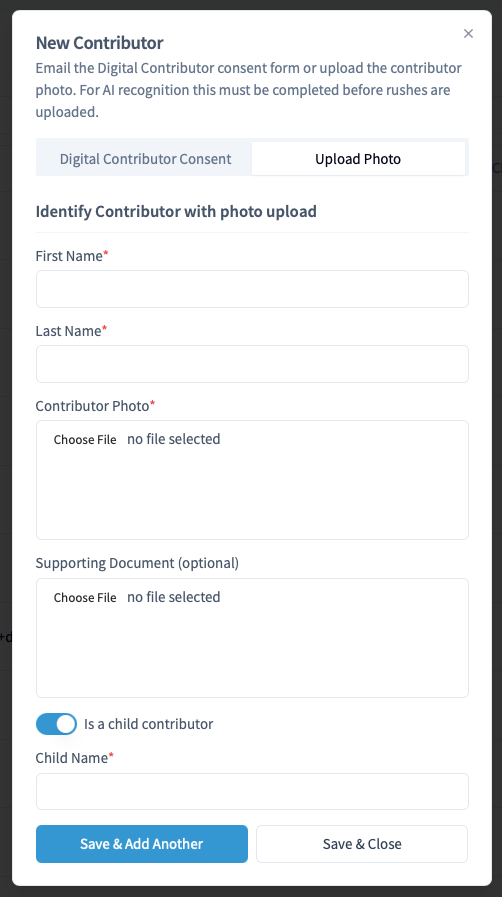
The photo will be used for AI analysis provided it is uploaded before adding media to the project.
There are two QR codes - one for Adults and one for Children with parental consent. The QR codes are unique to your project.
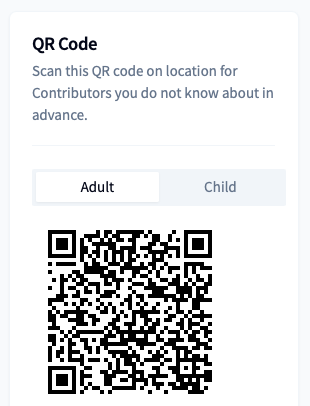
These are useful when on location as contributors can simply scan the QR code with their phone and they will be taken to the form to complete and sign the contract. Alternatively, if you have an iPad/Tablet on location you can use that to guide contributors through the electronic signing process.
The Contributor list view shows all contributors associated to this project.
The contributor status can be:
Sent - emailed the contributor contract for signing (Digital Contributor Consent only)
Opened - the contributor clicked the link to view the contract (Digital Contributor Consent only)
Completed - the contributor has signed the Digital Contributor Consent form (indicated by the eSign label beside their name) or a signed document has been uploaded
Recognised - the contributor has either been added manually via photo upload, or manually identified within the media AI Insights
If the status is Completed, you can view the signed documents by clicking the contributor name in the list or selecting the view options from the actions menu.
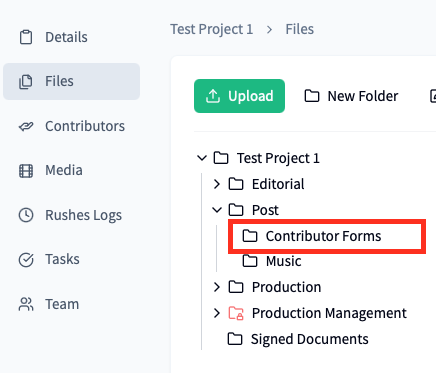
Completed contributor documents that we created by the eSign process can also be accessed in the Files section within the Post/Contributor Forms folder.
To search for media containing the contributor select one or more contributors and click the Find Media button. Alternative for an individual contributor you can select Find Media from the Actions menu.
Delete a contributor using the Action menu on the row item. Deleting a contributor will remove their photo from the AI model and therefore will not be used in future AI analysis.
